Changing the Default Docker Image Storage Path on CentOS
Environment: CentOS 7, Docker 1.13.1. This is the full story of every pitfall I hit while changing Docker's default image storage path.
(Mind your own OS and Docker versions, and please read the whole article before doing anything — otherwise you're on your own.)
Docker stores images under /var/lib/docker by default. You generally don't want to keep that default location: image files tend to be large, and the more services you run, the more pressure you put on the host's system disk — plus each image comes with its own mounted volumes and so on, which is beyond the scope of this article. The point is, data shouldn't live on the system disk; it should go on a dedicated data disk.
Changing the Storage Path
Down to business: edit Docker's config file at /usr/lib/systemd/system/docker.service
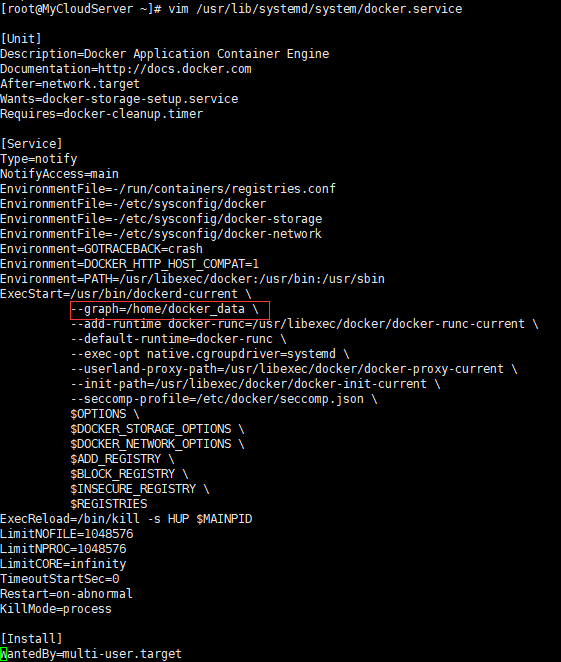
Add the graph option --graph="your path" \, save the change, then reload the config and restart the Docker service:
# Reload the systemd configuration
systemctl daemon-reload
# Restart the Docker service
systemctl restart docker.service
Run docker info to check Docker's current state:

Docker Root Dir now shows "your path", so the configuration took effect. I'd suggest pulling an image and checking the target folder to confirm it's really working, then rebooting the server to see whether the images are still there afterwards.
If you run docker images after the reboot and your downloaded images have vanished —
Congratulations, you're in the same boat I was, and you may start questioning your life choices. Run docker info again and the Docker Root Dir path looks perfectly fine. What I did here was delete the original /var/lib/docker folder. If you still want the data inside, copy it somewhere first, or just move the folder and rename it — the name doesn't really matter, what matters is that /var/lib/docker no longer exists. Try again after that and it should work — at least it did for me.
Postscript: The Images Vanished Again After a Reboot (2019-06-16)
I thought everything was configured properly. Of course it wasn't that simple — I clearly still didn't know Docker well enough.
This time my hosting provider suddenly did hardware maintenance, force-shutting down most of their servers (lesson: don't cheap out on no-name cloud providers). My server went down too, and after the maintenance and reboot, my blog was still unreachable. I had Docker set to start on boot with containers set to restart automatically, but apparently none of that kicked in, so it was time to dig in. (I genuinely thought I had this configured last time. Apparently not.)
I logged into the server, ran docker images, and the images were gone again, just like before. So my earlier fix hadn't actually solved anything — or more precisely, the configuration did take effect, but broke as soon as the host rebooted.
Even though docker info showed the correct Docker Root Dir, things were already broken: both docker images and docker ps -a returned nothing. Worse, if you run service docker stop at this point, you'll never get Docker to start again. service docker start fails with:
Job for docker.service failed because the control process exited with error code. See "systemctl status docker.service" and "journalctl -xe" for details.
Following the hint and running systemctl status docker.service and journalctl -xe tells you basically nothing useful. To see the actual error, run the Docker daemon in the foreground so the startup logs print directly to your terminal:
# Run the Docker daemon in the foreground to see startup logs directly
dockerd
The Storage Driver Rabbit Hole
I learned a lot while chasing this error — for instance, Docker's five storage driver modes:
Jianshu: https://www.jianshu.com/p/00ffd8df6010
Someone else's blog: https://blog.csdn.net/qq_34018840/article/details/89853119
AUFS, Btrfs, Device mapper, OverlayFS, ZFS
I eventually went with Overlay2, the upgraded version of OverlayFS. My original driver was Device mapper — docker info printed a notice at the bottom saying Device mapper was only auto-selected for test environments and that production setups should switch to something else. That sealed my decision to move to Overlay2, but I didn't rush the switch. First I kept investigating the mystery: why couldn't Docker read the image files under /home/docker_data after a host reboot?
I searched Google, Baidu, GitHub, Zhihu, forums, Jianshu, and the official docs and found nothing — until I stumbled on a thread in the official Docker community where some guy abroad had hit almost exactly the same issue. The discussion there pointed to a version problem, so I figured, fine, time to install something newer.
So I completely removed Docker and reinstalled it (note: since 1.13, Docker switched to date-based version numbers, split into Community Edition CE and Enterprise Edition EE):
# Completely remove the old Docker version
yum remove docker
yum remove docker-selinux
I installed docker-ce-17.12.0.ce (reportedly a fairly stable release) and configured /etc/docker/daemon.json

On startup, Docker complained that my Linux kernel didn't support the overlay2 storage driver, so I upgraded the kernel — you need 4.0 or newer for overlay2.
Then docker info warned me that my disk didn't support d_type. So I reformatted the mounted disk as xfs with ftype=1:
# Check the filesystem info; ftype=1 means d_type is supported
xfs_info /home
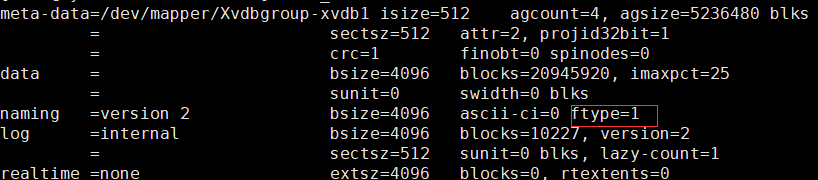
I pointed Docker's default image storage location at this d_type-capable data disk and restarted Docker.

Now docker info showed no warnings at all — d_type enabled, storage driver switched to overlay2.

This felt perfect: docker info was completely clean. I immediately pulled a Tomcat image and confirmed it landed in the designated folder. Great! I ran reboot right away to restart the host.
After the reboot, docker images was empty AGAIN!!!
Who am I? What am I doing? What has all of this even been for?
I was completely done. I had no idea which step I'd gotten wrong.
The Final Fix
Here's how I finally solved it: I mounted the data disk directly at /var/lib/docker, set it to auto-mount on boot, and removed the data-root setting from /etc/docker/daemon.json.
After the next host reboot, docker images showed my images, and the containers came back up automatically. Now even a power outage or shutdown is no problem — Docker restarts the containers after the host comes back.
Later I moved to an Alibaba Cloud server and everything just worked with zero issues, so it may well have been a hardware problem all along.
Wrapping Up
Changing the image storage path looks like a one-flag job — just add --graph — but it dragged in a whole chain of issues: storage drivers, kernel versions, filesystem d_type support. After going around in circles, my final approach was the opposite of where I started: don't touch Docker's path configuration at all, mount the data disk directly at /var/lib/docker, and set it to auto-mount on boot. Images and containers then survive reboots just fine. If your images are disappearing after reboots too, look first at the storage driver and the disk mount ordering — and don't rule out flaky hardware on a budget server. When picking a cloud provider, cheap isn't always a bargain.
COMMENTS