Installing Fiddler and Capturing HTTPS Traffic
Fiddler is a well-known and extremely practical packet-capture tool (mainly for HTTP requests), with plenty of extensions available on its official site. During development we inevitably need a capture tool to inspect API data or test API security — for instance, tampering with values on unsigned requests. This post covers installing Fiddler and configuring its certificate to capture encrypted HTTPS traffic.
When building APIs, the most common questions are: did the request actually go out, are the parameters right, and what did the server return? The browser's F12 devtools only show requests the browser itself makes — calls from mobile apps, desktop programs, and backend services are invisible to it. Logs, meanwhile, usually record only business fields and miss the raw payload you actually want to verify. A capture tool fills exactly this gap: it sits between the client and the server as a proxy and lays every request and response out in front of you, in full. Among these tools, Fiddler has the lowest setup cost and the smoothest HTTP support.
The tricky part is HTTPS. Nearly all APIs run over HTTPS now, with payloads encrypted end to end — even if the proxy intercepts the traffic, all it sees is ciphertext. To see plaintext, Fiddler has to insert itself into the TLS handshake as a "man in the middle" — and that's exactly what this post explains in detail.
Download and Install
Fiddler's official site:
Fiddler | Web Debugging Proxy and Troubleshooting Solutions
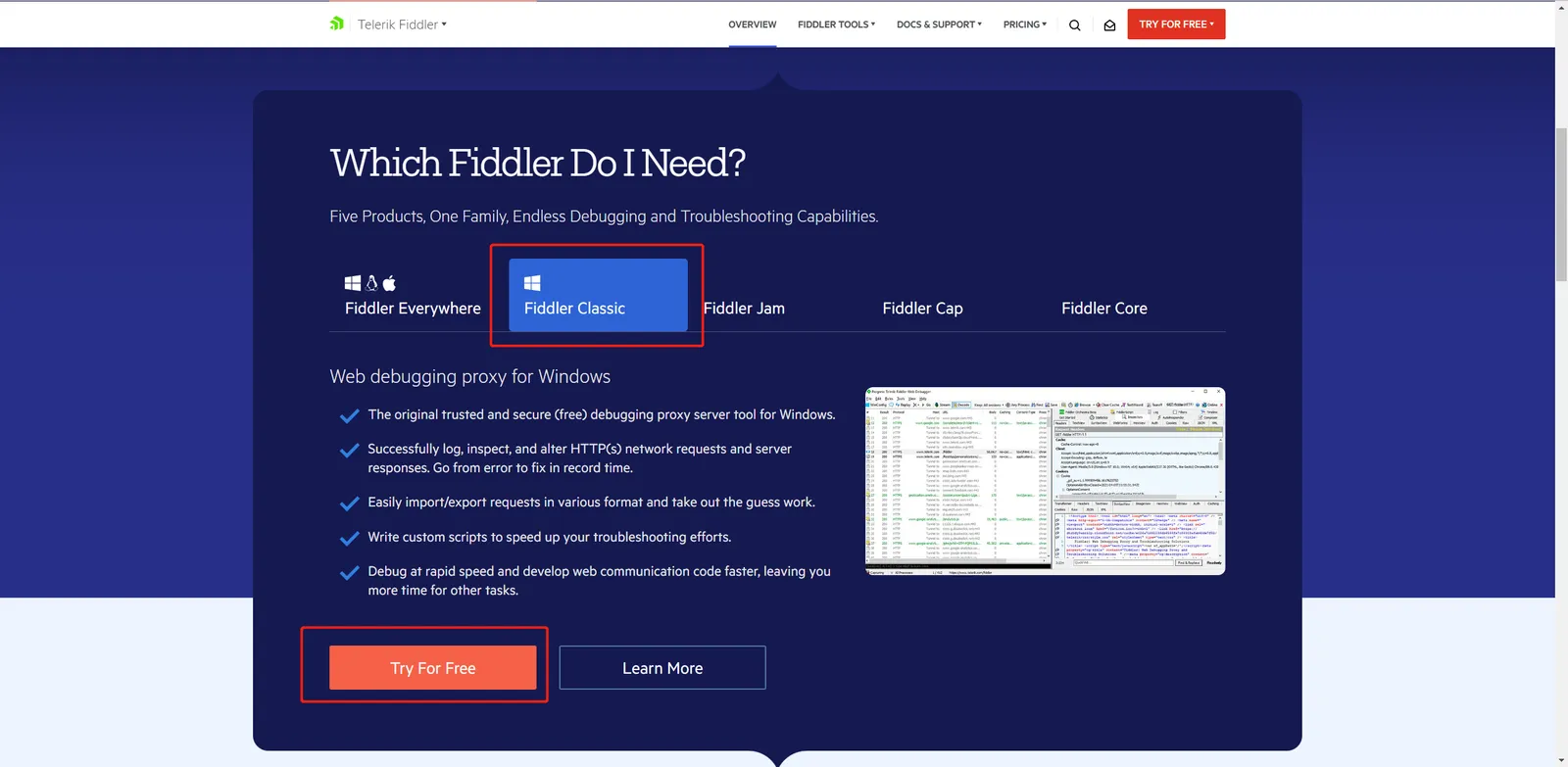
Pick the appropriate version to download. For personal debugging, the free Fiddler Classic is plenty — no need to sign up for the enterprise edition.
Run it after installation:
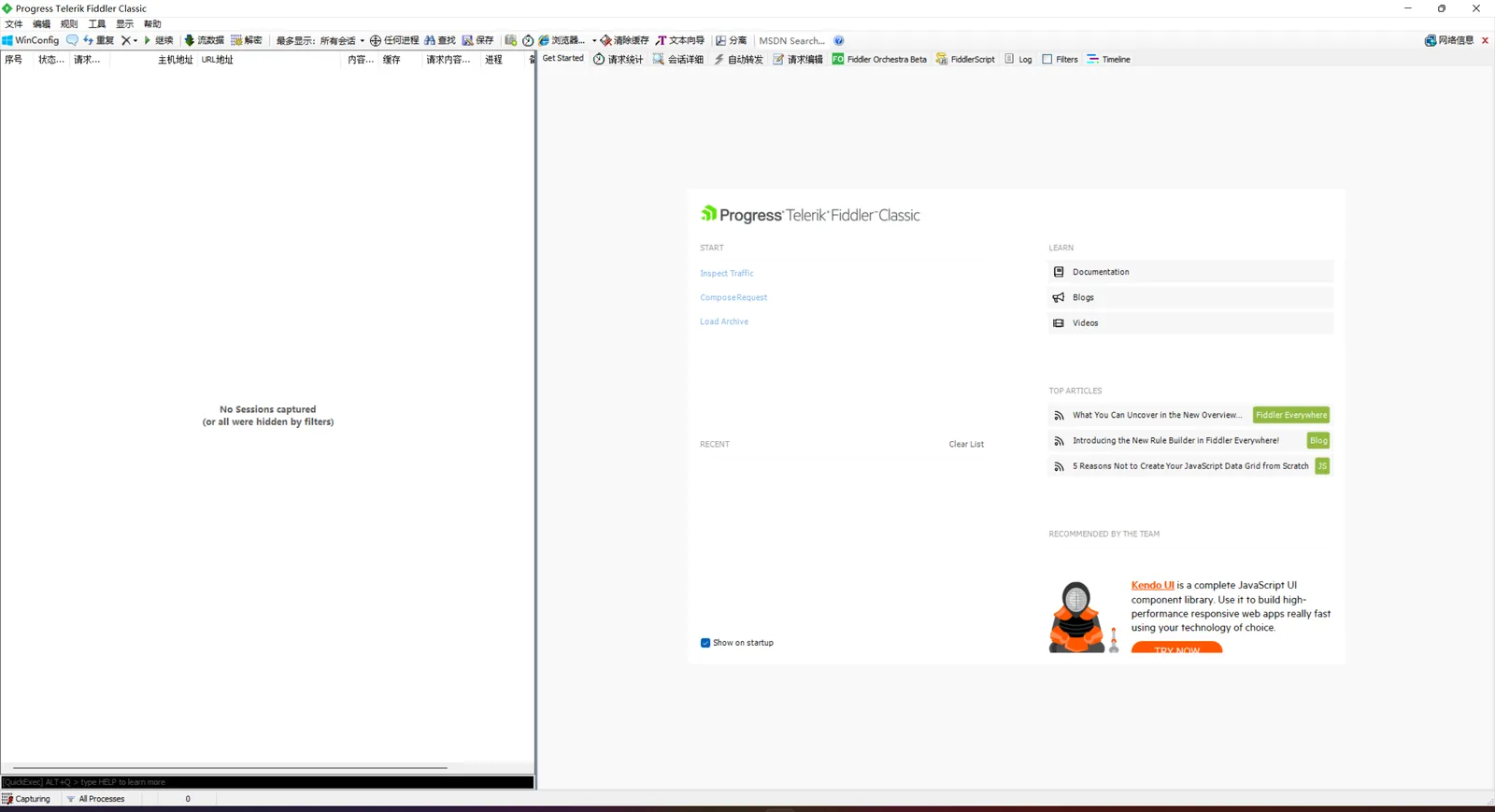
At this point, with no configuration at all, we can already capture HTTP requests (since HTTP is plaintext — though the traffic does need to go through the system proxy, and Firefox requires "manual proxy configuration"). But if our project uses HTTPS, everything is encrypted for security. So how do we capture that?
A quick note on how the proxy works: when Fiddler starts, it registers itself as the system proxy, listening on 127.0.0.1:8888 by default. Programs that honor the system proxy (most Windows applications, Chrome, Edge) automatically route their traffic through it. Firefox, however, has its own independent proxy settings and ignores the system proxy, so you need to manually configure a proxy in its network settings, pointing at the same address and port:
HTTP proxy:  127.0.0.1
Port:        8888
How HTTPS Capture Works
First we need to configure Fiddler's certificate. Why bother with that, you might ask? Let's take a quick look at the mechanism:
-
Fiddler intercepts the HTTPS request from our client.
-
It forwards the intercepted request to the target server.
-
The server responds and sends its certificate back to our client. Fiddler intercepts it, keeps the server's real certificate, and sends our configured forged certificate to the client instead.
-
The client accepts the forged certificate and sends its data again — now encrypted with the forged certificate.
-
Fiddler intercepts and reads all the request data, then re-encrypts it with the real certificate captured in step 3 and sends it on to the server.
In short, Fiddler acts as a relay in the middle — which is why it can see the data both sent by our client and returned by the server.
Put plainly, this is a "benign man-in-the-middle attack". HTTPS security rests on the certificate trust chain: when a client receives a server certificate, it verifies that the certificate was issued by a root CA it trusts. The reason Fiddler can swap the certificate without the client rejecting it is that you've installed Fiddler's root certificate into the system's "Trusted Root Certification Authorities" store. Once it's there, the forged certificates Fiddler mints on the fly pass validation, the client agrees to encrypt subsequent data with them, and the plaintext lands in Fiddler's hands. This is also why step 2 below — trusting the root certificate — cannot be skipped.
Configuring the Certificate
Fiddler certificate setup:
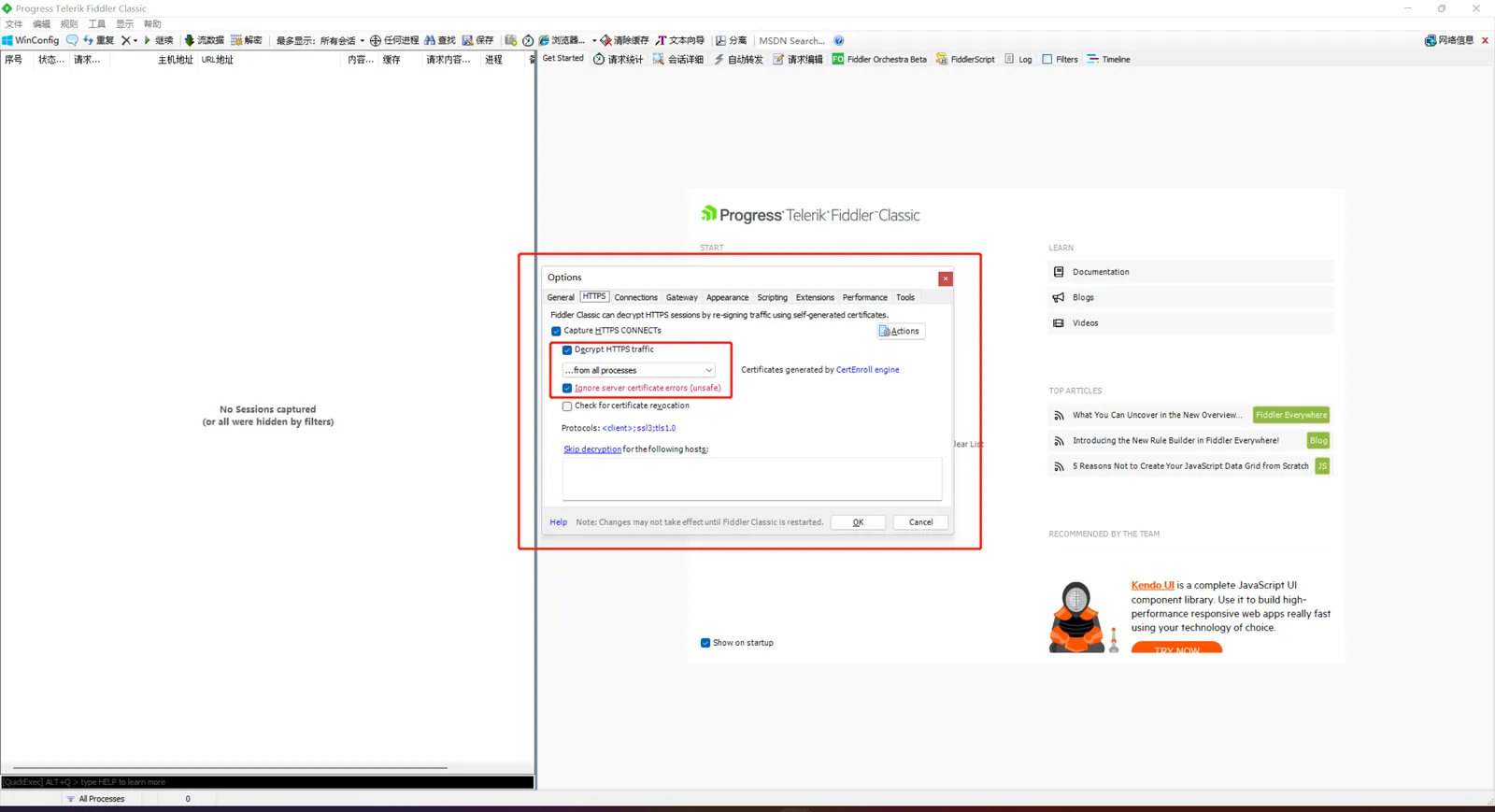
- Tools -> Options -> HTTPS
Check Decrypt HTTPS traffic and select from all processes
This is the master switch for HTTPS decryption. from all processes decrypts HTTPS traffic from every process; if you only want to capture one program, switch to from browsers only or use process filtering later, so unrelated traffic doesn't flood the session list.
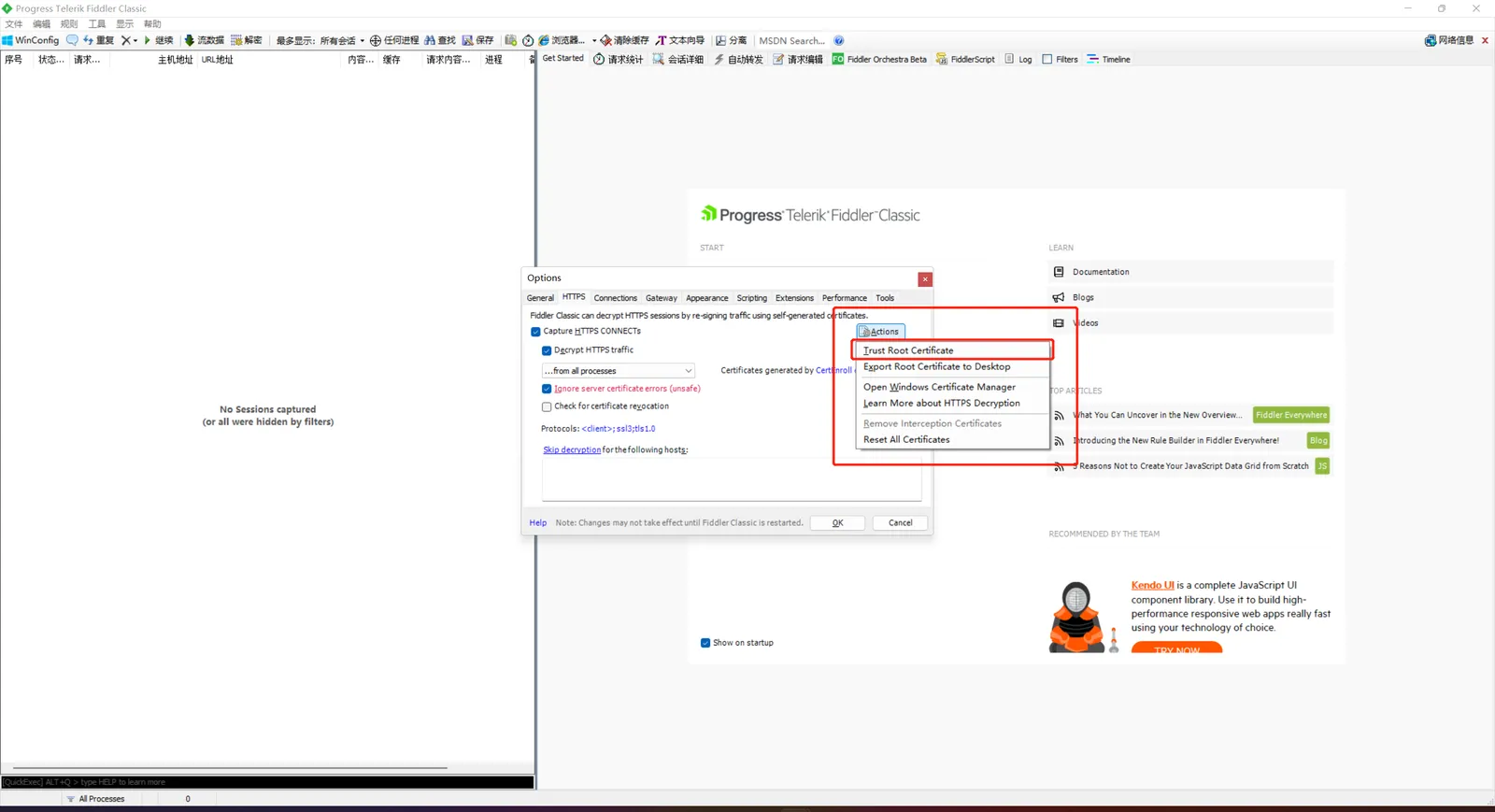
- Actions -> Trust Root Certificate
This is the key move described in the mechanism above: installing Fiddler's root certificate into the system trust store.
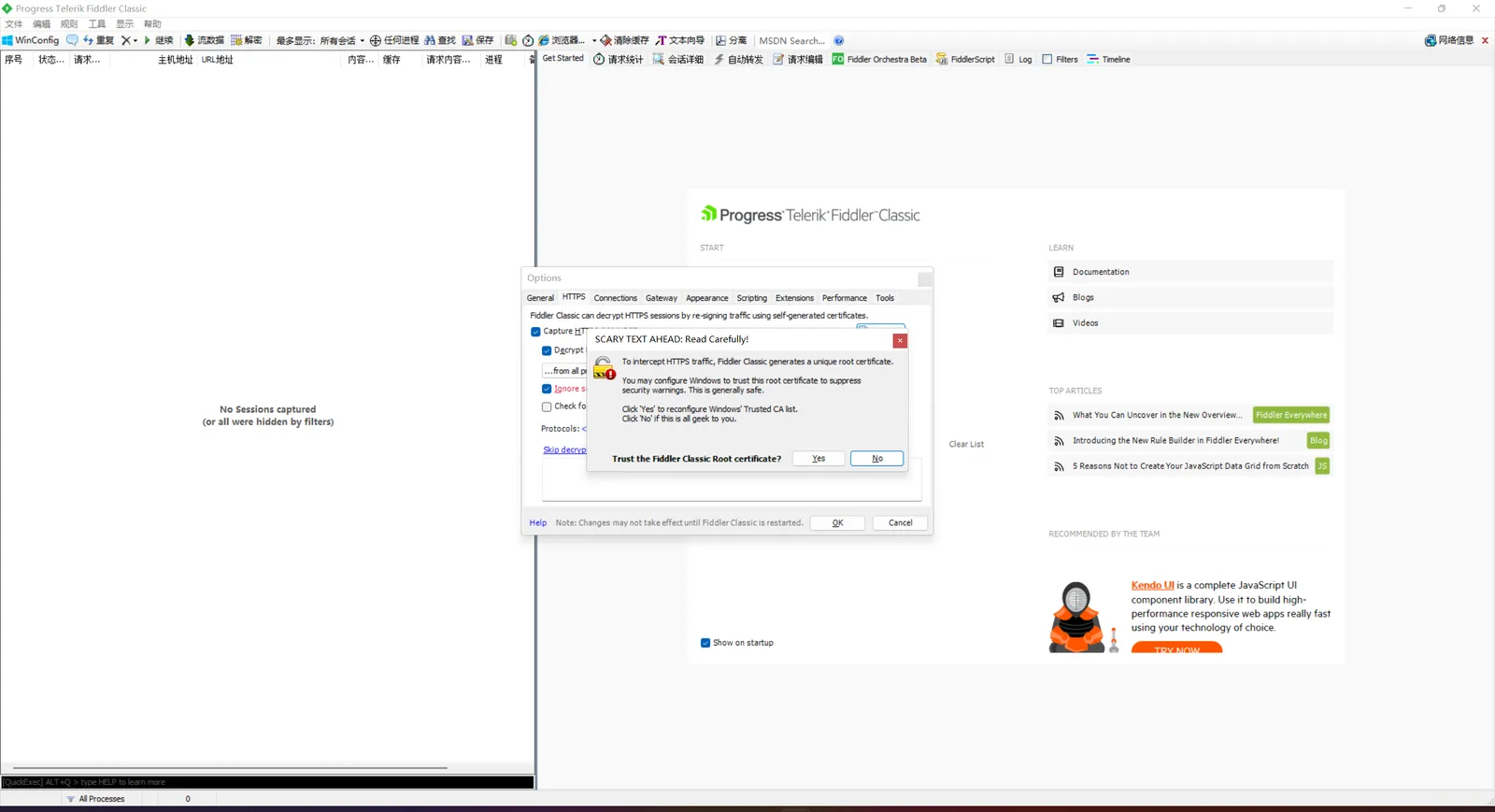
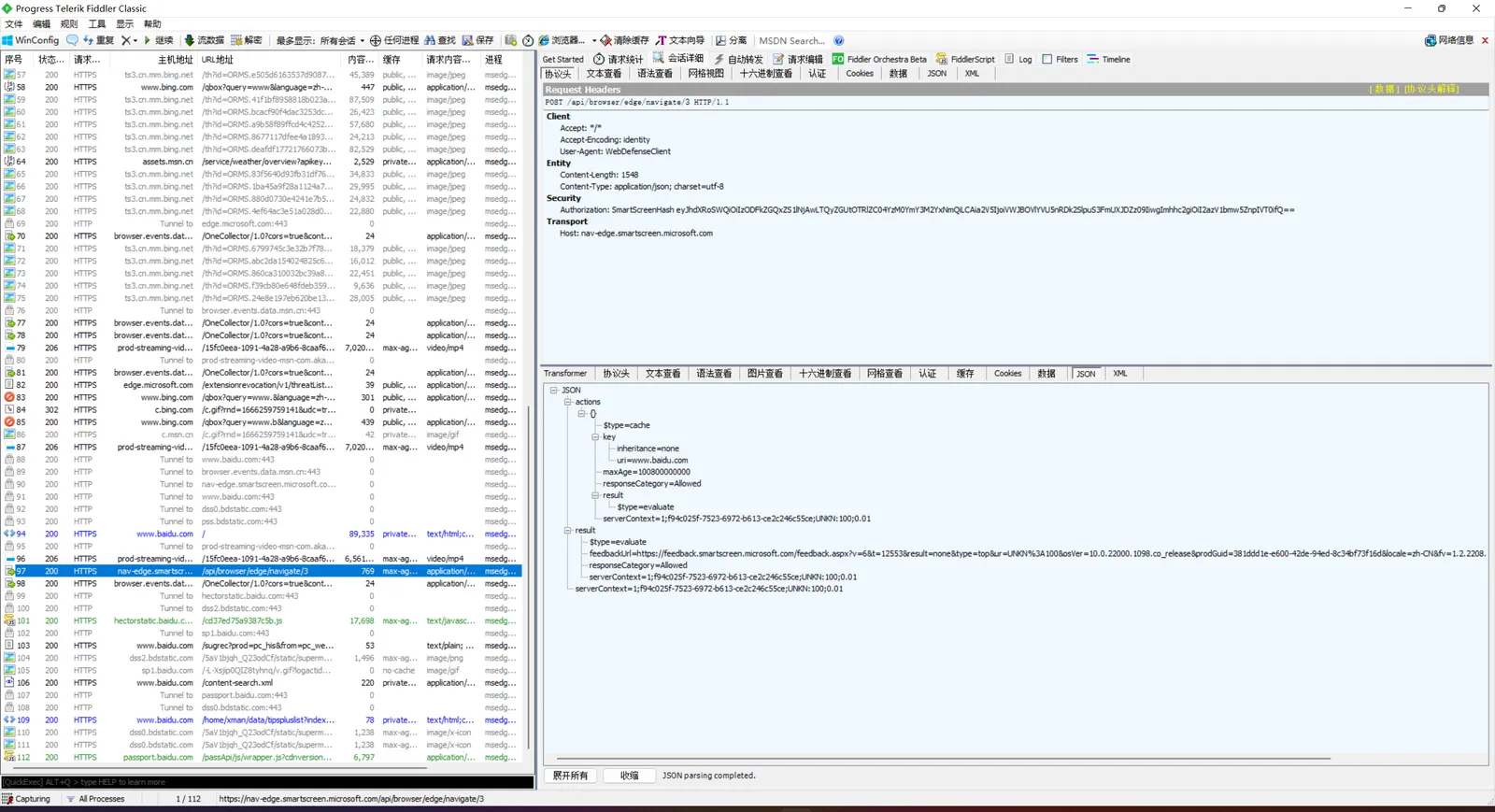
- Click Yes and the certificate is configured — start capturing and you can view HTTPS request contents
Click Yes in the dialog to confirm trust, and the certificate is installed. Back in the main window, HTTPS sessions that previously showed as encrypted gibberish now reveal their plaintext request headers, bodies, and responses.
Pitfalls and Caveats
- Can't capture a particular app's traffic: most likely it doesn't use the system proxy, or it bypasses certificate validation checks in its own way. Since Android 7, apps no longer trust user-installed certificates by default — you need the app itself to opt in or use other means; installing the certificate alone won't get Fiddler in.
- The client uses SSL pinning: these apps hard-code the server certificate's fingerprint, so the moment they see Fiddler's substituted certificate they refuse the connection. Ordinary configuration can't get around this.
- Firefox capture not working: double-check that its independent proxy points at
127.0.0.1:8888— an easy step to forget.
Once Fiddler's root certificate is in your system store, this machine effectively has a backdoor that can decrypt all HTTPS. When you're done debugging, go to Tools -> Options -> HTTPS and click Remove Interception Certificates, or delete DO_NOT_TRUST_FiddlerRoot from the system certificate manager. Don't leave it sitting on your dev machine long-term.
Wrapping Up
Capturing plaintext HTTP takes almost zero setup. Capturing HTTPS boils down to just two things: enabling Decrypt HTTPS traffic, and trusting Fiddler's root certificate. Once you grasp the "man in the middle + forged certificate" through-line, you can also roughly diagnose where things are stuck when capture fails — traffic not going through the proxy, certificate not trusted, or the other side doing pinning.
COMMENTS