IntelliJ IDEA Default Shortcuts
A record of IDEA's default keyboard shortcuts. After years of writing Java, what actually leveled up my productivity wasn't plugins—it was getting my hands off the mouse. This post walks through the default keybindings by use case.
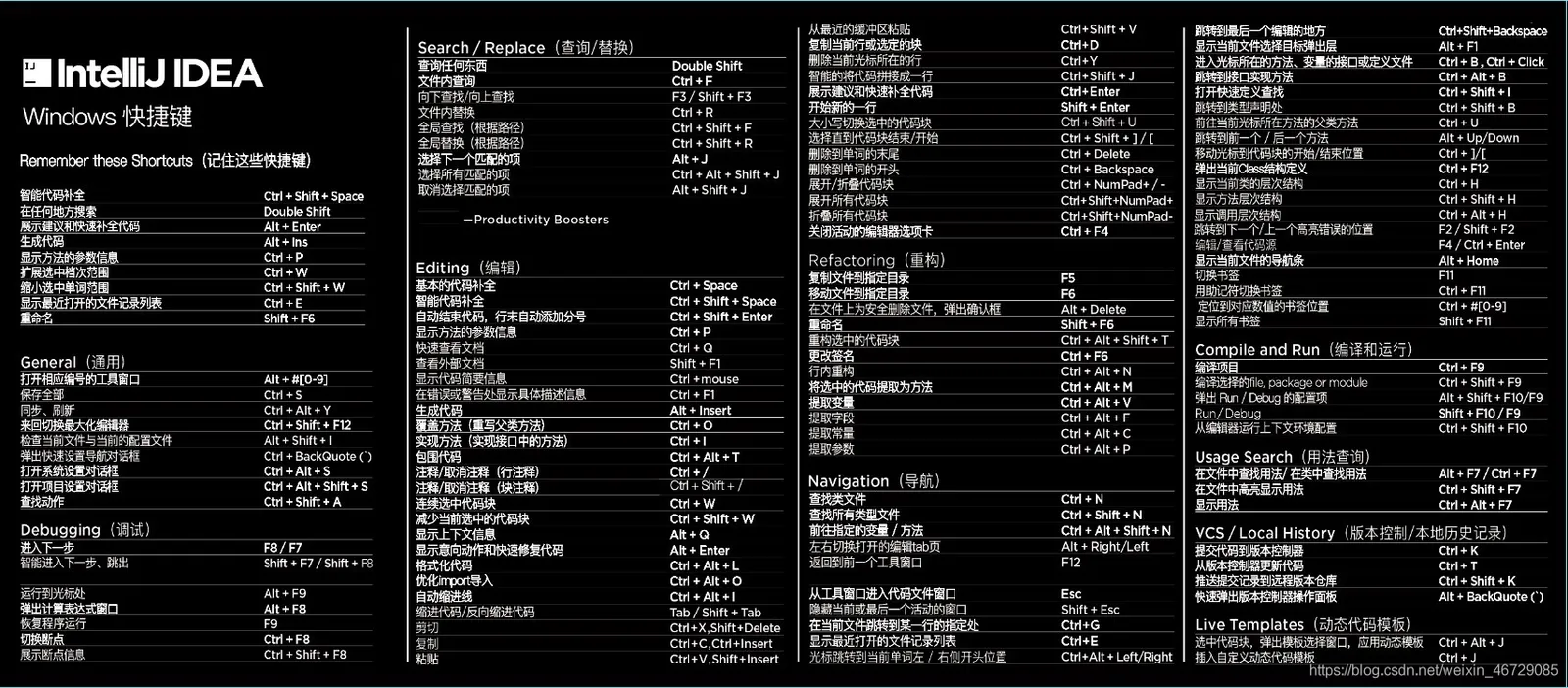
Why the Default Keymap Is Worth Learning
IDEA supports custom keymaps, and you can switch to Eclipse or VS Code style with one click. But I recommend sticking with the defaults, for a simple reason: when you switch machines, hop onto a coworker's computer, or follow official docs and video tutorials, the default keymap works everywhere, and your muscle memory never goes to waste.
The shortcuts below follow the default Windows/Linux keymap. On macOS, swapping Ctrl for Cmd and Alt for Option usually gets you there; the few exceptions are called out separately.
Search and Navigation
These are the most frequently used—practice them first.
- Double Shift: Search Everywhere—globally search classes, files, symbols, and settings. When in doubt, use this.
- Ctrl + N: find a class by name; Ctrl + Shift + N: find a file; Ctrl + Alt + Shift + N: find a symbol (methods, fields).
- Ctrl + Shift + F: project-wide text search; Ctrl + Shift + R: project-wide replace.
- Ctrl + B (or Ctrl + left click): jump to definition; Ctrl + Alt + B: jump to implementation—more useful than jumping to the definition when reading interfaces.
- Alt + F7: Find Usages—see who calls a method or references a field.
- Ctrl + E: recently opened files; Ctrl + Shift + E: recently edited files.
- Ctrl + G: go to a specific line number—handy when chasing stack traces in logs.
Editing and Code Generation
- Alt + Enter: context-aware quick fix—importing packages, adding try-catch, creating missing methods all rely on it. Arguably the soul of IDEA.
- Alt + Insert (Cmd + N on macOS): Generate menu—constructors, getters/setters, equals/hashCode, method overrides.
- Ctrl + D: duplicate the current line; Ctrl + Y: delete the current line. Note that Ctrl + Y is redo in many editors but deletes a line in IDEA—easy to hit by mistake at first.
- Ctrl + W / Ctrl + Shift + W: expand/shrink selection by syntax structure—great for selecting an expression or a code block.
- Ctrl + Alt + L: format code; Ctrl + Alt + O: optimize imports.
- Ctrl + /: line comment; Ctrl + Shift + /: block comment.
- Shift + Alt + Up/Down: move a line up or down; Ctrl + Shift + Up/Down: move by syntax block, so statements never leave the method body.
Refactoring
The value of refactoring shortcuts is safety: IDEA updates every reference in sync, far more reliable than manual search-and-replace.
- Shift + F6: rename—works for classes, methods, and variables alike.
- Ctrl + Alt + M: Extract Method; Ctrl + Alt + V: extract variable.
- Ctrl + Alt + C: extract constant; Ctrl + Alt + F: extract field.
- Ctrl + Alt + Shift + T: Refactor This—pops up every refactoring available at the current position. When you forget the ones above, this is your fallback.
Running and Debugging
- Shift + F10: run the current configuration; Shift + F9: run with the debugger.
- F8: step over; F7: step into; Shift + F8: step out of the current method.
- F9: resume execution to the next breakpoint.
- Ctrl + F8: toggle a breakpoint on the current line.
- Alt + F8: open Evaluate Expression while debugging to run an ad-hoc expression and inspect the result.
Pitfalls and Caveats
When a shortcut stops working, don't rush to reinstall—another program has most likely grabbed it:
-
On Windows, resident software like input methods, NetEase Cloud Music, and QQ register global hotkeys, and combos like
Ctrl + Alt + Lare the most commonly hijacked. Disable the global hotkey in the offending app. -
Linux desktop environments (GNOME/KDE) ship window-management shortcuts that can also conflict with IDEA; rebind them on the system side in your settings.
-
In IDEA, press Ctrl + Shift + A (Find Action) and type a feature name to see the key currently bound to any action—the universal entry point for troubleshooting conflicts and discovering obscure features.
Don't try to memorize everything at once. Pick three to five high-frequency keys (double Shift, Alt + Enter, Ctrl + W, Shift + F6) and use them for a week. Once the muscle memory forms, add the next batch. This works far better than cramming from a list.
Wrap-up
Shortcuts pay compound interest: each use only saves a second or two, but you search, navigate, and refactor hundreds of times a day. The default keymap travels across machines, and with Ctrl + Shift + A available for lookups, there's barely any memorization burden. I'll keep coming back to this list myself whenever I forget one.
COMMENTS